产品概览
Qt-UI StyleKit 产品概览
StyleKit 是面向 Qt Widgets 项目的 QSS 集合样式库,用于快速统一按钮、输入框、表格、菜单、弹窗、滚动条等常用控件的视觉表现。
适用场景
- 老项目界面统一改造。
- 新项目建立 UI 基线。
- 工业软件、业务系统、数据看板的主题规范建设。
核心内容
- 多套 QSS 主题预览。
- 常用控件状态覆盖。
- 图标资源与控件尺寸规范。
- 主题变量和颜色使用建议。
接入方式
项目中通常只需要加载对应主题的 QSS 文件,并按文档约定使用控件对象名、属性或状态类。
快速接入
快速接入
本章说明如何在 Qt Widgets 项目中加载 StyleKit 样式。
基础流程
- 将 QSS 文件复制到项目资源目录。
- 在应用启动时读取 QSS 内容。
- 调用
qApp->setStyleSheet(...)应用样式。 - 根据文档设置控件对象名或属性。
C++ 示例
QFile file(":/themes/stylekit-light.qss");
if (file.open(QIODevice::ReadOnly | QIODevice::Text)) {
    qApp->setStyleSheet(QString::fromUtf8(file.readAll()));
}
常用调用方法
| 方法 | 说明 | 参数 | 返回值 |
|---|---|---|---|
QFile file(path) |
创建 QSS 文件读取对象。 | path:QSS 资源路径或本地文件路径。 |
QFile 对象 |
file.open(QIODevice::ReadOnly | QIODevice::Text) |
以只读文本方式打开 QSS 文件。 | 打开模式组合。 | bool,打开是否成功 |
file.readAll() |
读取完整 QSS 内容。 | 无 | QByteArray |
QString::fromUtf8(data) |
将 UTF-8 字节内容转换为 QString。 |
data:QSS 字节内容。 |
QString |
qApp->setStyleSheet(qss) |
将 QSS 应用到整个 Qt 应用。 | qss:样式表字符串。 |
void |
注意事项
- 建议在应用初始化阶段统一加载。
- 不建议在多个页面重复覆盖全局样式。
- 特殊控件可通过对象名做局部定制。
使用指南
StyleKit 使用指南
本章参考 UIGearsStyleKitPreview 示例程序,说明如何在 Qt Widgets 项目中加载 StyleKit、切换主题并组织样式文件。
运行示例程序
StyleKit 示例工程位于 UIGearsStyleKit/UIGearsStyleKit,用于预览 QSS 主题、控件状态和图标资源。
cmake --build UIGearsStyleKit/UIGearsStyleKit/build-debug --config Debug --target UIGearsStyleKitPreview --parallel
UIGearsStyleKit/UIGearsStyleKit/build-debug/Debug/UIGearsStyleKitPreview.exe
构建后,CMake 会把 styles 目录复制到可执行文件同级目录,示例程序优先从运行目录读取 QSS。这样发布预览包时,只需要保留 exe 与 styles 目录即可。
样式目录
推荐保持如下目录结构:
styles/
  light.qss
  blueLight.qss
  dark.qss
  vs17Light.qss
  ...
每个 qss 文件顶部包含 @palette 元数据,用于说明主题色、文本色、背景色和高亮色。应用运行时不依赖这些注释,但它们可以作为设计、文档和后续生成工具的统一来源。
加载 QSS
示例程序中的加载顺序为:
<applicationDir>/styles<currentWorkingDirectory>/styles- 编译时传入的源码目录
UIGEAR_STYLE_DIR
项目中可以采用同样策略,先查找运行目录,再回退到开发目录。
static QString readStyleSheet(const QString& path)
{
    QFile file(path);
    if (!file.open(QIODevice::ReadOnly | QIODevice::Text)) {
        return {};
    }
    return QString::fromUtf8(file.readAll());
}

QString qss = readStyleSheet(QCoreApplication::applicationDirPath() + "/styles/blueLight.qss");
qApp->setStyleSheet(qss);
常用调用方法:
| 方法 | 说明 | 参数 | 返回值 |
|---|---|---|---|
readStyleSheet(const QString& path) |
读取指定路径的 QSS 文件内容。 | path:QSS 文件路径。 |
QString,读取失败时为空字符串 |
QCoreApplication::applicationDirPath() |
获取应用程序所在目录,用于定位发布目录下的 styles。 |
无 | QString |
qApp->setStyleSheet(qss) |
将 QSS 应用到整个 Qt 应用。 | qss:样式表字符串。 |
void |
切换主题
切换主题时只需要重新读取目标 qss,并调用 qApp->setStyleSheet(...)。示例中的主题切换窗口会根据按钮选择加载不同文件,例如 light.qss、blueLight.qss、dark.qss。
void applyTheme(const QString& themeFile)
{
    const QString path = QCoreApplication::applicationDirPath() + "/styles/" + themeFile;
    const QString qss = readStyleSheet(path);
    if (!qss.isEmpty()) {
        qApp->setStyleSheet(qss);
    }
}
主题切换相关方法:
| 方法 | 说明 | 参数 | 返回值 |
|---|---|---|---|
applyTheme(const QString& themeFile) |
根据主题文件名加载并应用 QSS。 | themeFile:主题文件名,例如 blueLight.qss。 |
void |
qss.isEmpty() |
判断读取到的 QSS 是否为空。 | 无 | bool |
qApp->setStyleSheet(qss) |
重新应用当前主题样式。 | qss:样式表字符串。 |
void |
控件属性
StyleKit 通过 Qt 标准选择器、对象名和动态属性组织状态。业务代码可以通过属性选择不同变体:
QPushButton* saveButton = new QPushButton(tr("Save"), this);
saveButton->setProperty("variant", "primary");

QProgressBar* progress = new QProgressBar(this);
progress->setProperty("variant", "success");
设置动态属性后,如果控件已经显示,建议刷新一次样式:
saveButton->style()->unpolish(saveButton);
saveButton->style()->polish(saveButton);
saveButton->update();
动态属性刷新方法:
| 方法 | 说明 | 参数 | 返回值 |
|---|---|---|---|
setProperty(const char* name, const QVariant& value) |
设置 Qt 动态属性,用于匹配 QSS 属性选择器。 | name:属性名;value:属性值。 |
bool,属性是否设置成功 |
style()->unpolish(widget) |
移除控件当前样式缓存。 | widget:需要刷新的控件。 |
void |
style()->polish(widget) |
重新计算控件样式。 | widget:需要刷新的控件。 |
void |
update() |
触发控件重绘。 | 无 | void |
滚动区域
StyleKit 已覆盖 QScrollBar 与 QAbstractScrollArea::corner。如果页面包含 QTableWidget、QTreeWidget、QListWidget、QTextEdit 等滚动控件,不需要单独写滚动条样式;滚动条会自动跟随当前主题的背景色、高亮色和禁用文本色。
发布建议
- 将
styles目录随应用一起发布。 - 不建议在多个页面分别设置全局 QSS,统一在应用启动或主题切换处加载。
- 业务页面只设置对象名、动态属性和必要的布局参数,避免把颜色硬编码在页面代码里。
- 自定义控件如果继承 Qt 标准控件,优先复用现有选择器;只有新的视觉结构才增加专用对象名。
AI Skills 接入
StyleKit AI Skills 接入
StyleKit Skill 是给 AI 助手使用的产品知识包,包含 QSS 主题加载、动态属性、图标资源、样式目录发布和常见排查规则。将它交给 Codex、ChatGPT 或企业内部 AI 助手后,AI 在生成 Qt Widgets 样式代码时会优先遵循 StyleKit 的主题化方式。
下载
目录结构
uigears-stylekit/
  SKILL.md
  agents/openai.yaml
  references/
    integration.md
    api-reference.md
SKILL.md 负责触发和使用原则,references 目录保存详细接入流程、API 和 QSS 约定。
适合的 AI 任务
- 生成 Qt Widgets 项目的 QSS 加载代码。
- 设计主题切换流程。
- 解释 StyleKit 的动态属性、对象名和图标资源使用方式。
- 检查控件样式不生效、图标丢失、主题文件路径错误等问题。
- 生成符合 StyleKit 约束的页面样式建议。
接入步骤
- 下载并解压
qt-ui-uigears-stylekit-skill.zip。 - 将
uigears-stylekit放到 AI 工具可读取的 skills 目录,或作为项目提示词资料放入团队知识库。 - 在需求中明确要求 AI 使用 StyleKit,例如“使用 UIGears StyleKit 生成主题加载代码”。
- 让 AI 优先读取
references/integration.md,需要 API 或 QSS 细节时再读取references/api-reference.md。
示例提示词
使用 uigears-stylekit skill,帮我把 Qt Widgets 项目改成从运行目录 styles/blueLight.qss 加载主题,并支持运行时切换到 light.qss。使用 uigears-stylekit skill,检查这个按钮为什么设置 variant=primary 后样式没有刷新。生成代码时的约束
- 优先使用
qApp->setStyleSheet(...)加载全局 QSS。 - 使用 Qt 动态属性表达按钮、进度条、状态类控件的变体。
- 使用对象名处理局部页面样式。
- 不要在业务页面中大量硬编码颜色。
- 运行时修改动态属性后,需要刷新
unpolish / polish / update。
样式预览
样式预览
StyleKit 样式预览展示每套 QSS 主题的真实界面效果。可以通过这些截图比较控件密度、颜色方向、边框层级和状态可读性,再选择项目主题。
Absent Light
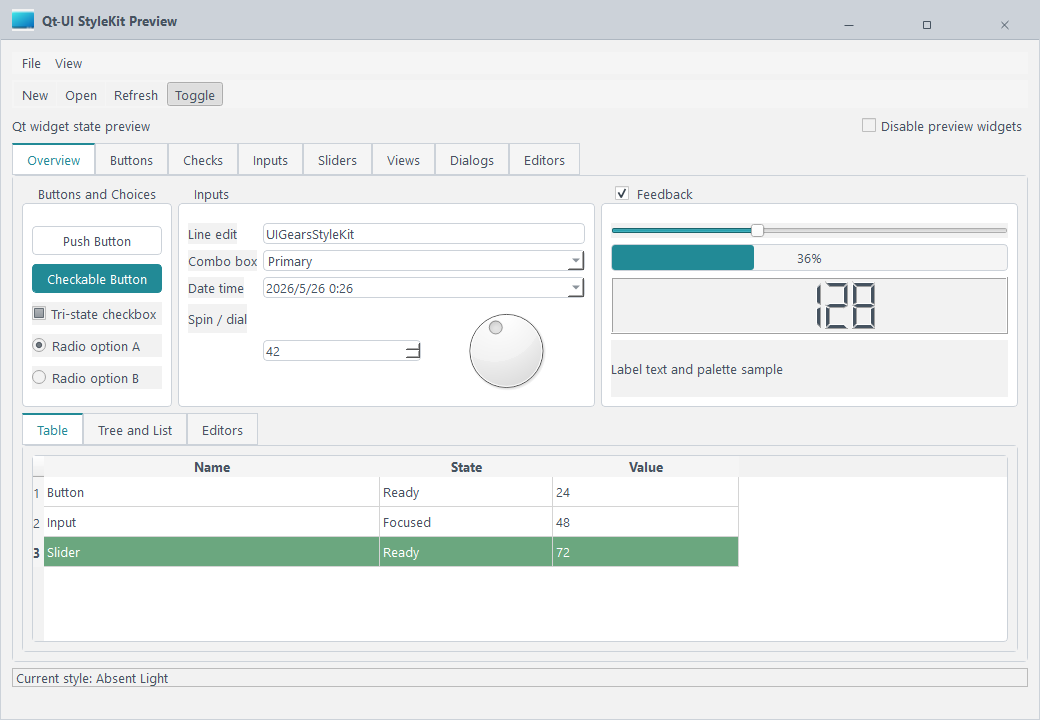
偏轻盈的浅色主题,适合常规业务后台、表单页和轻量信息展示场景。
标签:Light、Clean
Arduino
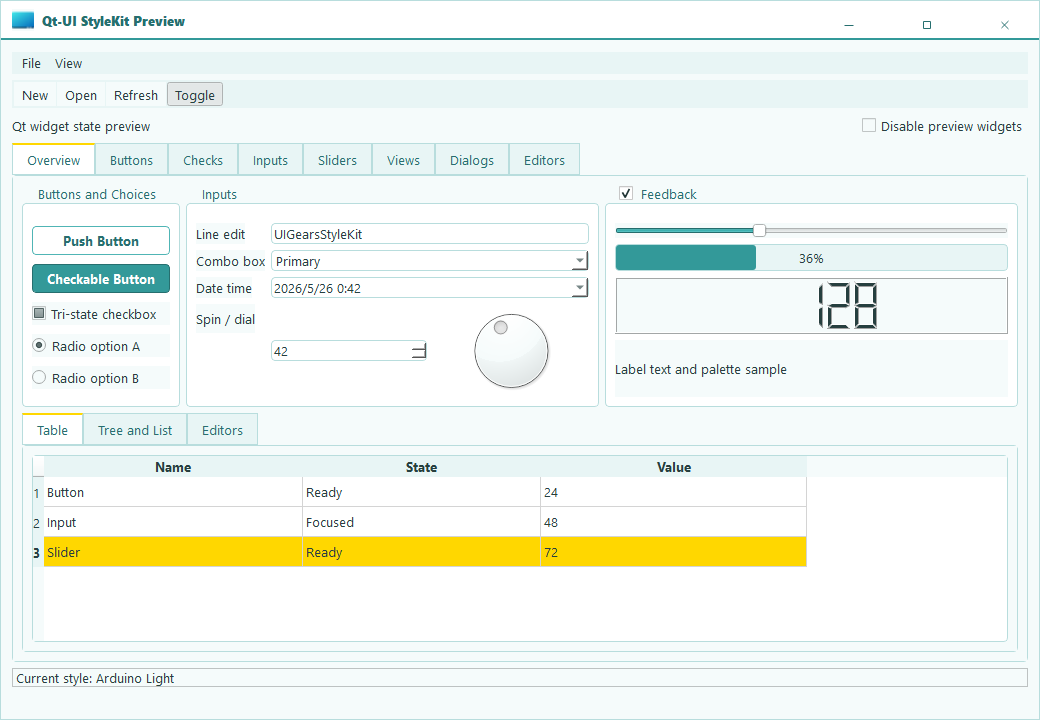
带一点硬件工具感的亮色方案,适合设备面板、控制页和技术工具界面。
标签:Light、Tooling
Ayu Bordered
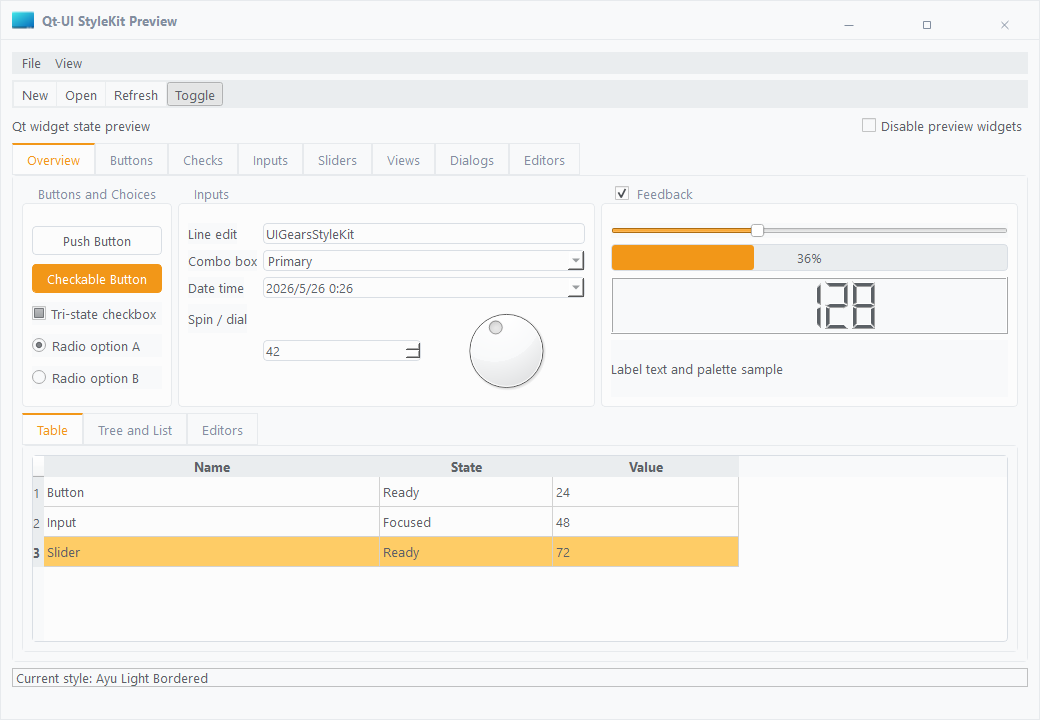
边界更明确、层次更稳的浅色风格,适合高密度数据页和配置面板。
标签:Light、Bordered
Blue Light
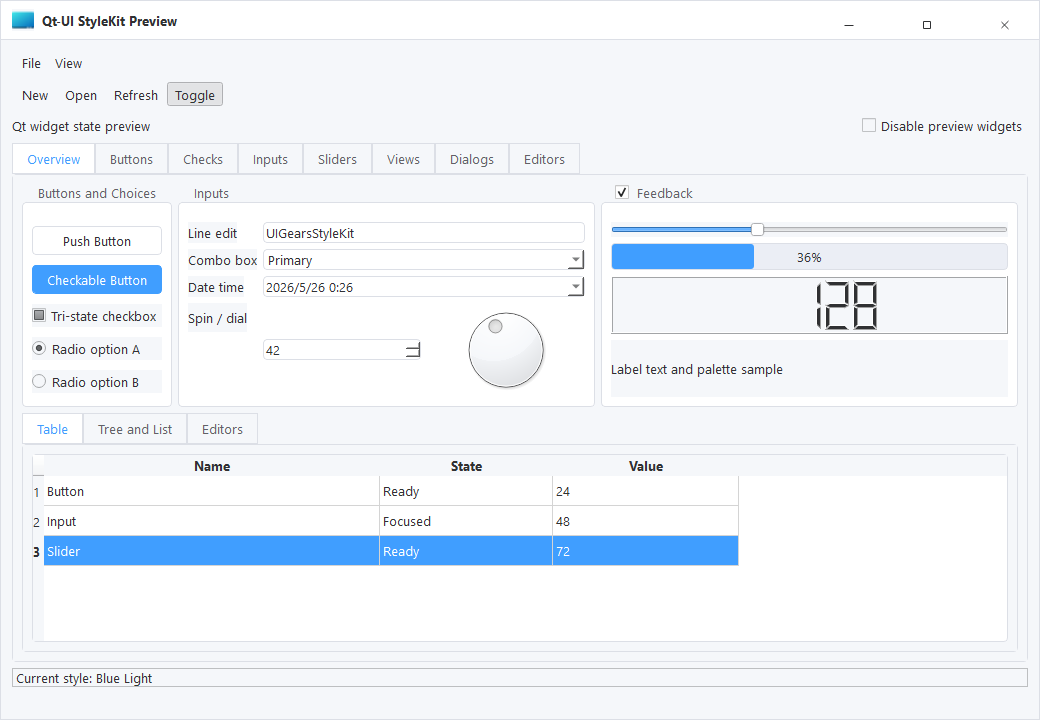
商务蓝倾向的浅色主题,适合企业管理系统、工作台和流程类页面。
标签:Light、Business
Common Light
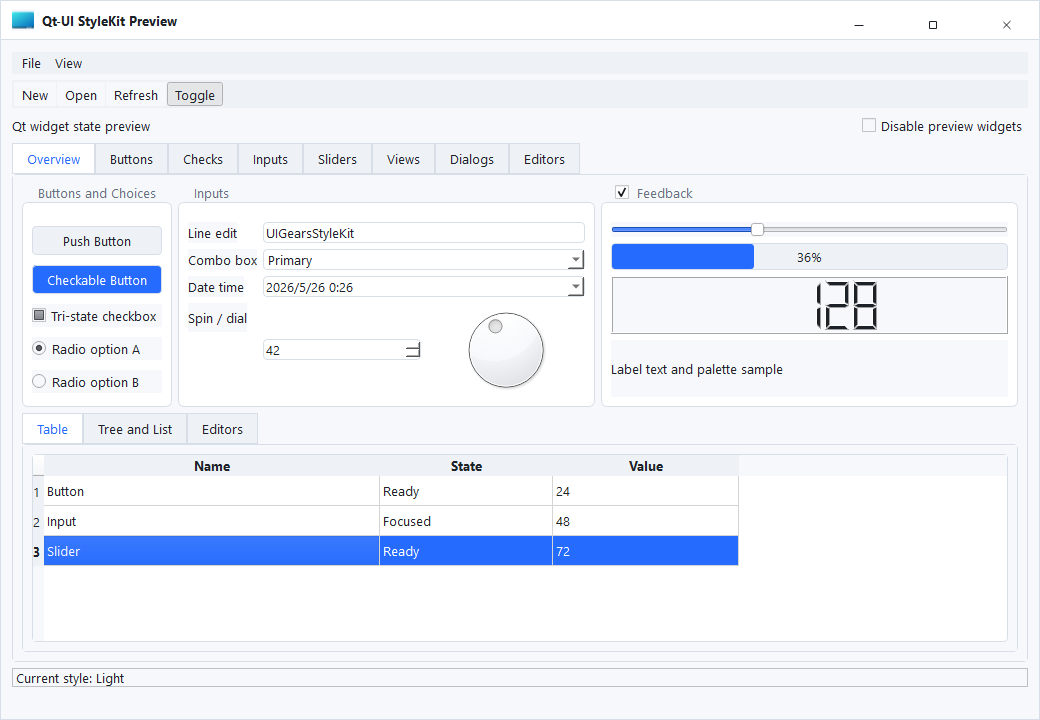
通用型浅色基线,适合快速落地标准工具界面和中后台页面。
标签:Light、General
Horizon
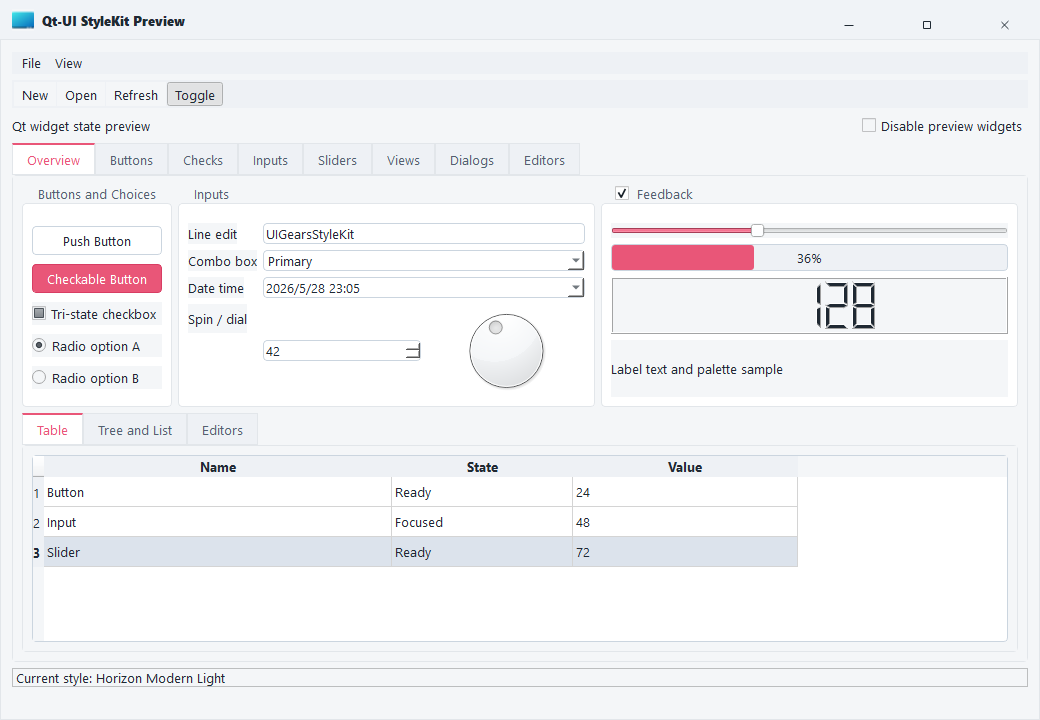
更柔和的色阶和层次过渡,适合内容展示、信息工作台和视觉更轻的桌面软件。
标签:Light、Soft
Monochromator
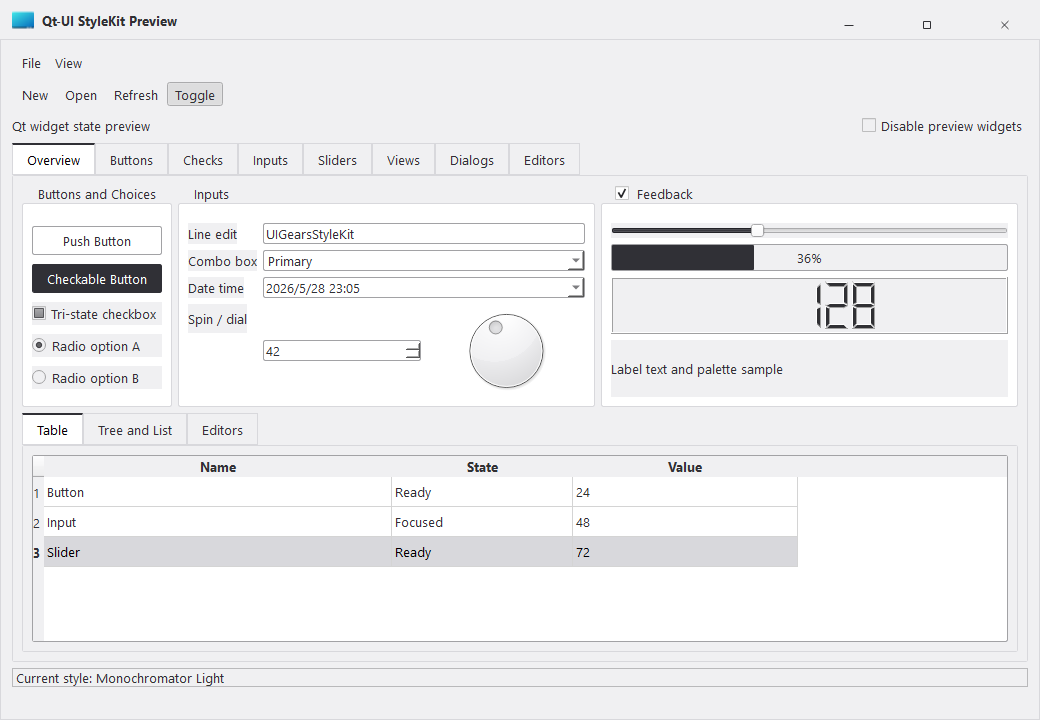
偏单色秩序感的风格,适合专业工具、参数配置页和强调结构层级的界面。
标签:Light、Monochrome
Neon Green
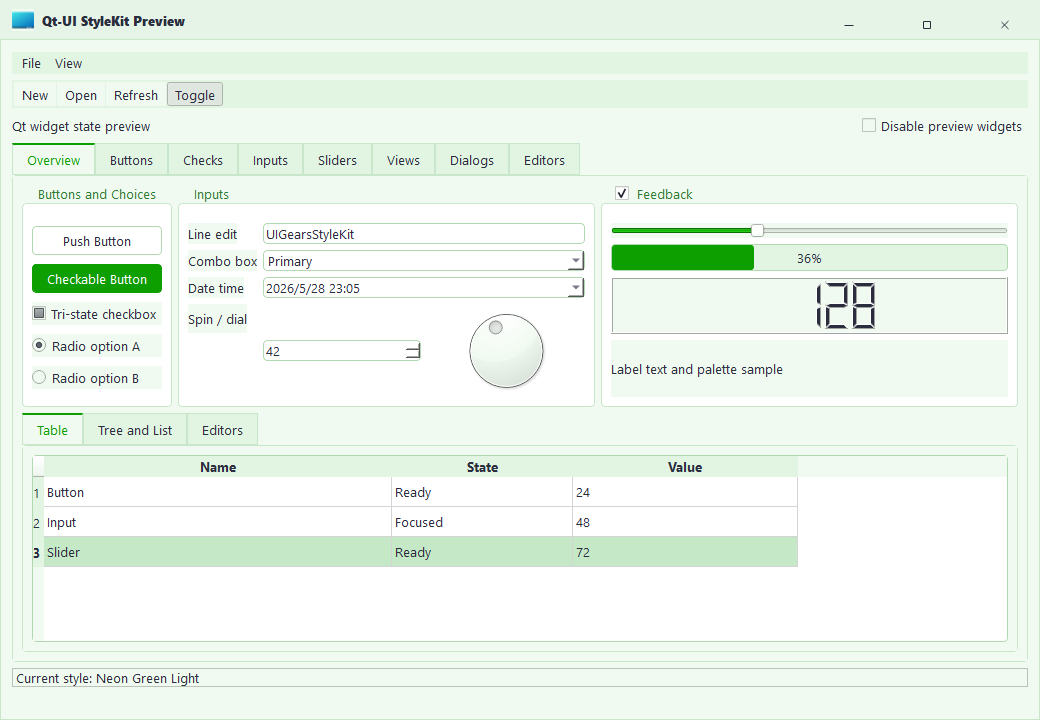
高辨识度的亮色主题,适合状态监控、实验工具和更强调反馈的界面场景。
标签:Light、Accent
Purple Blue
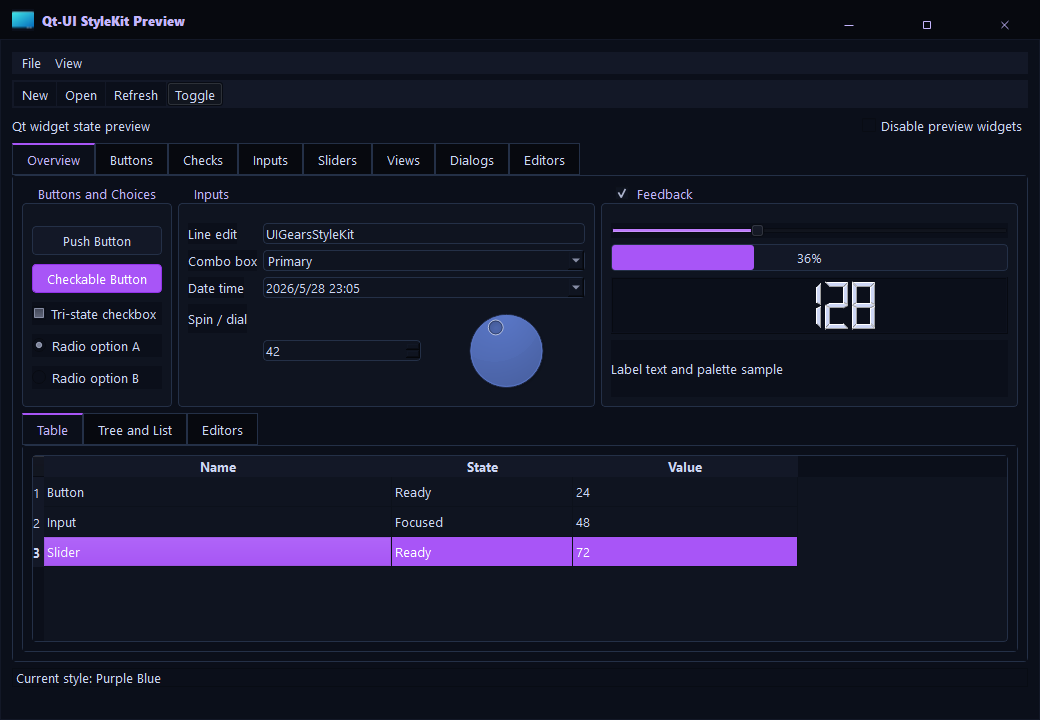
蓝紫倾向的视觉方案,适合更现代化的产品后台和带品牌氛围的桌面应用。
标签:Light、Brand
Tokoy Light
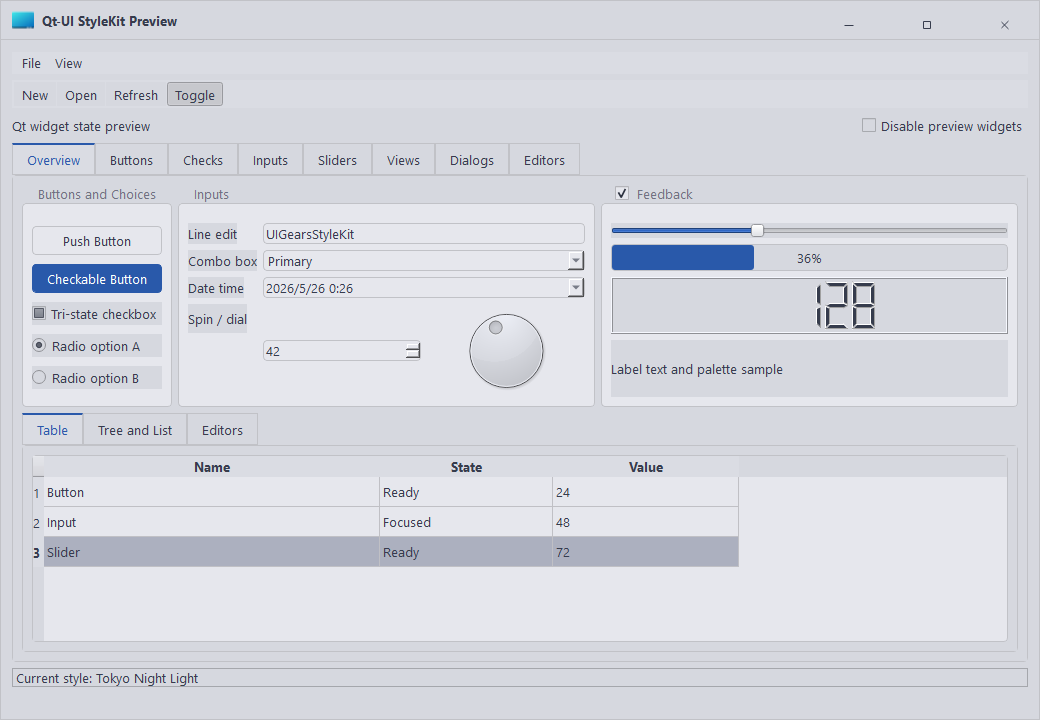
更有个性的浅色主题,适合展示感更强的产品后台和创意工具页。
标签:Light、Expressive
VS17 Dark
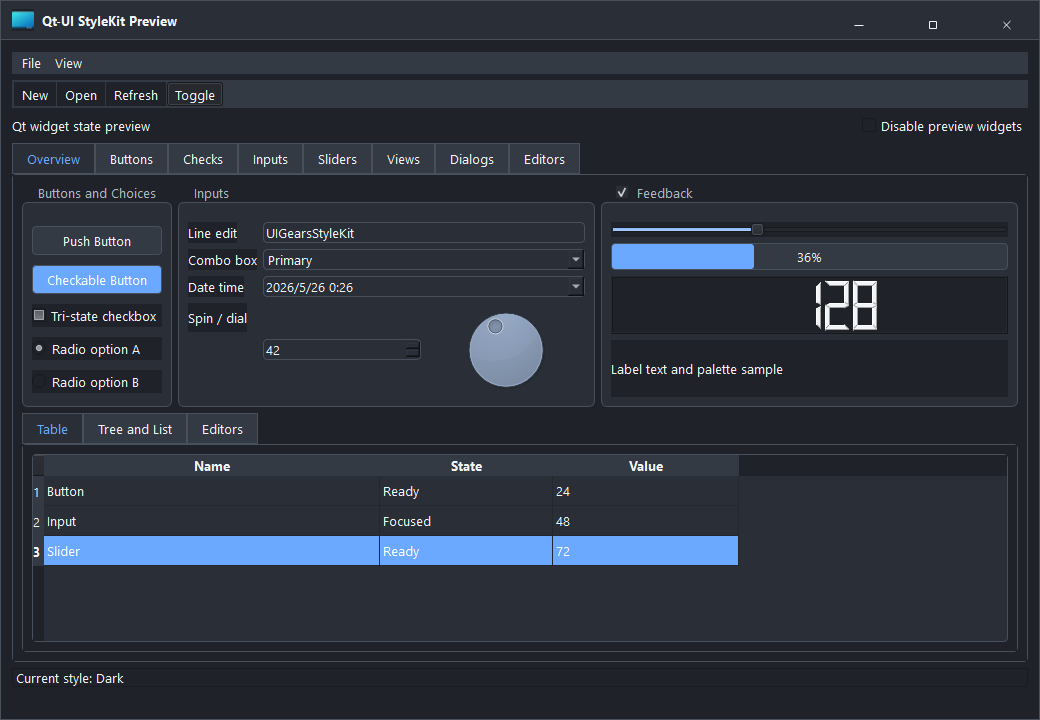
深色开发工具风格,适合工业软件、监控页面和高专注度工作界面。
标签:Dark、Studio
VS17 Light
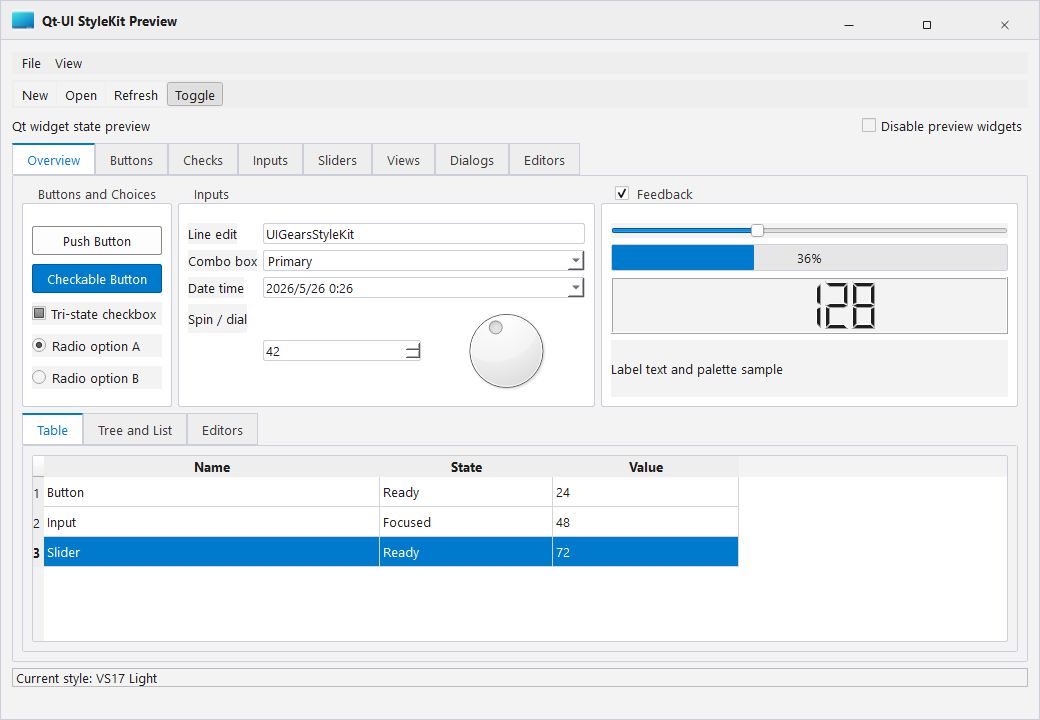
接近开发工具风格的亮色方案,适合工程类桌面软件和多面板布局。
标签:Light、Studio
QSS 结构
QSS 结构
StyleKit 的 QSS 建议按模块组织,便于后续维护和主题扩展。
推荐结构
themes/
  base.qss
  button.qss
  input.qss
  table.qss
  dialog.qss
  stylekit-light.qss
  stylekit-dark.qss
模块说明
base.qss:全局字体、颜色、基础背景。button.qss:按钮、工具按钮、状态按钮。input.qss:输入框、下拉框、日期选择等。table.qss:表格、表头、选中行、滚动条。dialog.qss:弹窗、提示框和边框阴影。
后续扩展
新增主题时建议复用模块结构,只替换主题变量和少量控件差异。
主题变量
主题变量
StyleKit 建议先定义主题变量,再映射到具体控件样式。
常见变量
| 变量 | 说明 |
|---|---|
color-primary |
主色,用于按钮和高亮状态 |
color-surface |
页面或面板背景 |
color-border |
边框和分隔线 |
color-text |
主文本 |
color-muted |
次级文本 |
使用建议
- 同一套主题内保持主色、边框、背景的层级关系。
- 表格、树、列表类控件应优先保证可读性。
- 深色主题需要单独检查禁用态和 hover 态对比度。
图标使用
图标使用
StyleKit 的图标资源用于工具栏、按钮、菜单和状态提示。
使用规范
- 图标尺寸建议与按钮高度保持一致节奏。
- 常用尺寸:
16px、20px、24px。 - 图标颜色应跟随当前主题文本色或主色。
分类建议
- Common:通用操作,如新增、编辑、删除、搜索。
- Navigation:导航和层级切换。
- Status:成功、警告、错误、加载。
- Data:表格、图表、数据库、导入导出。
后续维护
新增图标时建议按分类目录放置,并保持命名清晰。
授权说明
授权说明
StyleKit 提供试用版、基础版和完整版。
试用版
用于评估、学习和原型验证,不提供源码,不支持商用。
基础版
包含 StyleKit 单产品完整源码,支持单项目商用,包含 1 年版本免费升级权益,提供邮件 + 工单支持。
完整版
统一价格为 ¥12,800,包含 StyleKit、WidgetKit、ChartKit、AgentKit 全系列 4 款产品完整源码,不限商用项目数量,包含 1 年版本免费升级权益,提供邮件 + 工单 + 优先支持。
说明
实际授权范围以购买时的订单和协议为准。